
Workplace Service Delivery
Streamlining Workplace Experience with ServiceNow Have you heard about the Workplace Service Delivery (WSD) module in ServiceNow? WSD is a...
ServiceNow introduced integration capabilities with Microsoft Teams, allowing, e.g., the Virtual Agent to be used directly in Teams. This feature is now widely adopted. However, a lesser-known but powerful capability is accessing the Employee Center (ESC) within Microsoft Teams.
So, what does this look like in practice? Essentially, the ESC interface is rendered directly inside a Microsoft Teams window—either in the desktop app or browser version—with the exact same look and feel as when accessed via a regular web browser.
This article assumes that:
The Virtual Agent is already installed, configured, and enabled in ServiceNow.
Default integration with Microsoft Azure is completed.
How to confirm the setup?
ESC: The Virtual Agent bot is accessible in the ESC portal, allowing users to interact with it (e.g., checking ticket status via out-of-the-box topics or starting a live chat).
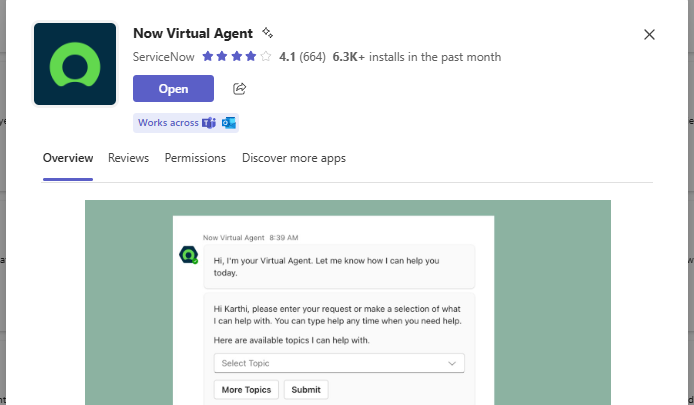
Teams: In Microsoft Teams, under the Apps menu, users can find and launch the Now Virtual Agent app (Figure 1) and start a conversion.

Figure 1. Now Virtual Agent application in Microsoft Teams.
Note: The Now Virtual Agent app is available by default in Microsoft Teams, even without integration. However, without proper configuration, users won’t be able to start a conversation with the ServiceNow-connected bot. Once integration is complete, the bot will behave the same in Teams as it does on the ESC portal.
Azure administrators can customize the default app by changing its icon, name, and description. This branding is handled entirely within Azure—no changes in ServiceNow are required for that.

Figure 2. Now Virtual Agent added in Teams.
There are two supported integration approaches for ServiceNow and Microsoft Teams:
Self-configured app
Pre-published app
This article focuses on the pre-published app method, as it is the most commonly used.
What’s the difference?
From an end-user perspective, both approaches behave the same. The difference lies in how the backend is configured to support different environment setups.
As stated above, in order to enable the Employee Center Portal (ESC) in Microsoft Teams, a manifest file needs to be generated in ServiceNow.
Manifest file is accessible from All > ServiceNow for Microsoft 365 > Application Manifest > ServiceNow for Teams. Here we need to choose ‘New’ and fill in the fields based on the instructions (see reference below).
Within the first step we can update name, version or description of application which will be later visible for users. Most importantly within this step we can configure branding, which consists of uploading two types of images- colour image and outline image. Additionally accent colour can be changed. Colour image is the icon of the app, outline image- is the icon of the app in navigator and in the chat, accent colour- determined the colour of the bar on top of an adaptive card when a link is unfurled.
In the second step we need to select one of the scenarios- either single or multiple instances connected to single Microsoft Teams tenant
Moving to third step triggers the system to generate OAuth profile (application registry) for Microsoft Teams.
Third step is a crucial part of our exercise – ‘Enable tab’- check box decides whether ESC will be made available in Teams or not. In our case it should be checked. Tab name- we can give a custom name to ESC.
In this step for self-configured app scenario, Application (client) ID and Directory (tenant) ID needs to be provided based on input from Azure administrator for custom app being created.


Figure 3. Option where in manifest wizard ESC can be enabled- pre-published (top) and self-configured (bottom).
In Last step review the summary and download the manifest file. This completes the ServiceNow setup.
Now it’s time for the Azure administrator to upload the app and make it available to users.
Important note: While ServiceNow’s documentation suggests uploading the app via Teams, in some organizations it must be deployed directly in the Azure portal. Confirm this with your Azure admin. The goal is to make the app available organization-wide—not just for a single user.
Once the manifest is uploaded, obtain the App ID from the Teams Admin Center and set it in ServiceNow (Figure 4).
Go to the sn_now_azure.teams_installed_app_id system property and paste the App ID.

Figure 4. App ID of the newly deployed application based on the manifest file.
To avoid duplicate notifications (from both the default NVA and the custom ESC-enabled app), you must disable the default app.
How:
Go to Teams Admin Center > Manage Apps
Locate Now Virtual Agent
Under Actions, choose Block App
Note: It may take up to 24 hours for the change to take effect across Teams.
After this, users will be able to use Virtual Agent as before—but now with the added benefit of the ESC tab directly in Microsoft Teams.
Depending on the setup, ESC may take some time to load in Teams, similar to how it loads in a web browser. So, please don't be surprised if it doesn't appear immediately.

Figure 5. ESC available in Microsoft Teams.
Although enabling the ESC tab in Microsoft Teams may seem like a simple change, it requires a solid understanding of configurations across both ServiceNow and Microsoft Teams environments. This process spans multiple administrative domains and involves coordination between ServiceNow developers and Azure/Teams administrators.
Convenience: One-click access to ServiceNow in Microsoft Teams.
Increased adoption: Employees are more likely to use ServiceNow services when available in their daily tool.
Self-service efficiency: Chat + ESC combo enables quick resolutions via knowledge articles, catalog items, or guided help.
Who Benefits the Most
They get faster access to services and information (e.g., requesting hardware, finding knowledge articles, opening HR cases) without leaving Teams.
It's a more familiar and unified experience, removing the need to open a separate ServiceNow browser session.
Reduction in ticket volume due to increased self-service and deflection via Virtual Agent and ESC.
Fewer “How do I?” tickets, since employees find answers directly via chat and the ESC UI.
Boosts employee productivity and satisfaction.
Supports digital workplace and tool unification strategies.
Audience
The main audience includes:
All employees in the organization- Especially in large, distributed, or hybrid teams using Teams daily.
HR, IT, and Facilities requesters- Anyone who opens cases or requests through ServiceNow.
Frontline or remote employees- Those who don’t have easy access to ServiceNow but frequently use Teams on mobile or desktop.
Secondary audiences include:
Streamlining Workplace Experience with ServiceNow Have you heard about the Workplace Service Delivery (WSD) module in ServiceNow? WSD is a...
Yet again, ServiceNow has delivered by far its largest release of new capabilities for generative AI powered by a platform with an entire new...

How do you choose the right ServiceNow partner? How do you ensure quality and know-how for your ServiceNow projects? The answer is to pay attention...